Part 2: Make and Keep Secrets
Chapter 16: Token
What it does. Token makes the 6-digit login codes used for two-factor sign-in, the same codes as Google Authenticator or Authy. Many accounts ask for one of these codes after your password. Token works out the code from the account's secret key, in your browser. Nothing is sent anywhere, and nothing is saved.
When to use it.
Signing in on a computer when your phone isn't with you, using a key you keep safely, for example in Vault.
Checking that a key you've backed up still produces the right codes.
Using two-factor sign-in without installing an app.
Treat the secret key like a password. Anyone who has it can make valid codes for your account, just as Token does.
Getting a code
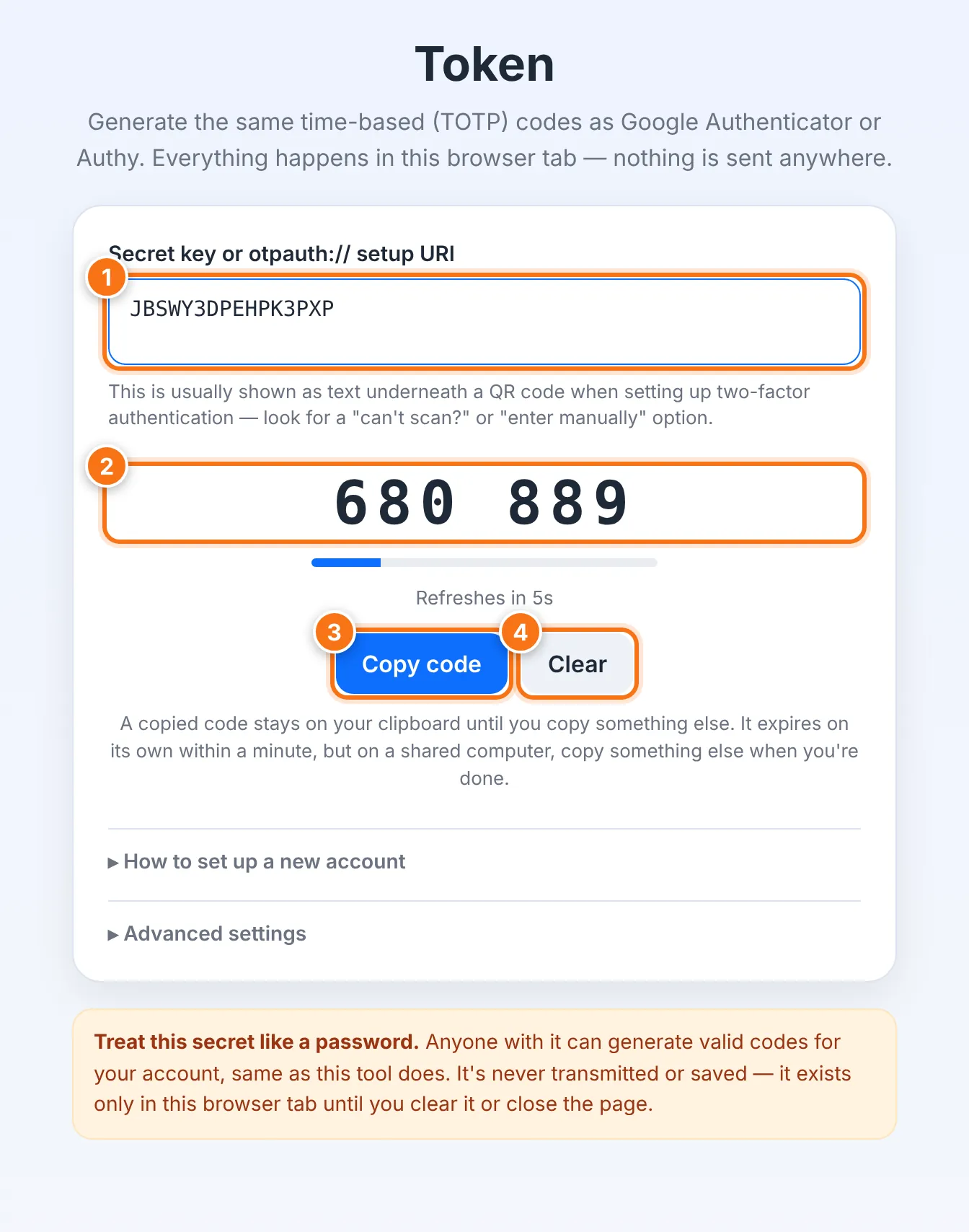
Paste the account's secret key, or a full otpauth:// setup link, into the box. A key looks like JBSWY3DPEHPK3PXP.
The current code appears, with a countdown showing when it changes (usually every 30 seconds).
Press Copy code and paste it into the sign-in page.
Press Clear when you're done, or close the page.
Token doesn't remember your key. Next time, paste it again.
Setting up two-factor sign-in on a new account
Open the account's security settings.
Choose the authenticator-app option for two-factor sign-in.
Choose can't scan? or enter manually to see the setup key.
Paste that key into Token.
Type the code Token shows into the account's setup screen to confirm.
Save the account's recovery codes somewhere safe.
The setup key and the recovery codes are different things. The setup key lets Token make your login codes. Recovery codes are one-time backups for when you lose access to your authenticator. Keep both safe, for example in Vault, or split the key with Split.
Advanced settings
Most accounts use 6 digits, every 30 seconds, with SHA-1. Only change Code length, Refresh interval or Algorithm if the service tells you to. If you paste a full otpauth:// link, its own settings are used automatically.
What it does not do
It keeps no list of accounts. It handles one account at a time and forgets the key when you leave. For everyday use with many accounts, an authenticator app on your phone is more convenient.
It doesn't support counter-based (HOTP) codes, only the usual time-based ones.
Copied codes stay on your clipboard until you copy something else. They expire within a minute, but on a shared computer, copy something else when you're done.
Common problems
| Problem | What to do |
|---|---|
| The code is rejected | Check that your device's clock is set automatically. Codes depend on the exact time. |
| "Contains a character that isn't valid" | Keys use only the letters A–Z and the numbers 2–7. Check for typos, like 0 instead of O. |
| "This is an HOTP (counter-based) setup code" | Token only supports time-based codes. Use an authenticator app for this account. |
| "This otpauth:// link looks malformed" | It was probably cut off when copied. Copy the whole link again. |