Part 2: Lock It Up
Chapter 5: Vault Beta
Beta. Vault is live, and the way it locks your passwords has been thoroughly tested. It's in public beta mainly to see how opening and saving files works across different browsers. While it's in beta, keep a backup copy of your vault file.
What it does. Vault is a password vault that lives in one locked file on your own device, protected by one master password. You can make strong passwords in it, store them, search them and copy them. There is no account and no cloud. Vault itself never uploads anything.
When to use it.
You have too many passwords to remember, and want one safe place for them.
You want your passwords with you on a USB drive, not tied to one browser or computer.
You want somewhere to keep the passwords for files you lock with the other tools.
The page has two tabs: Open Vault and Create New Vault.
Creating a new vault
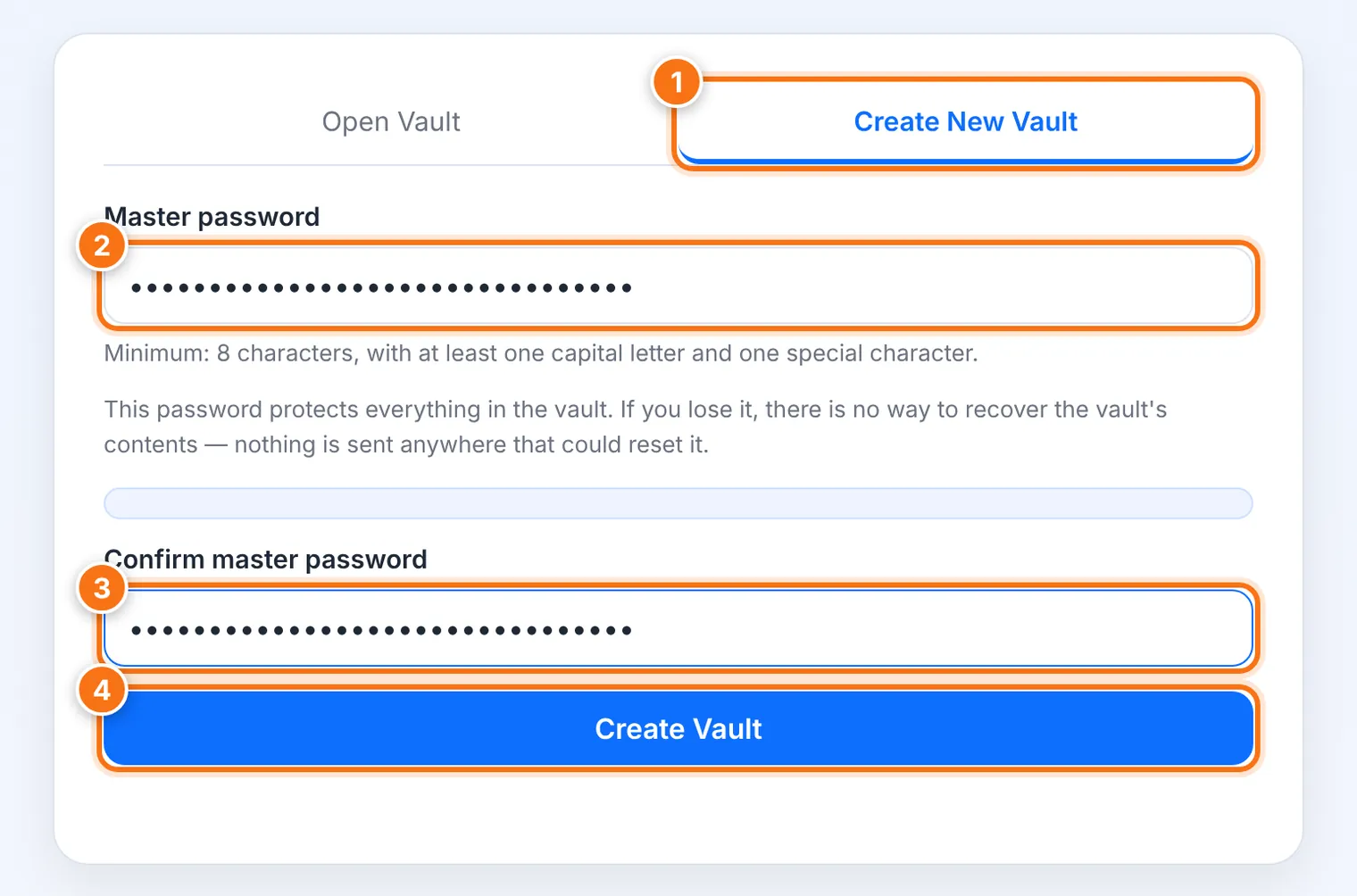
Choose the Create New Vault tab.
Choose a master password. Like the other tools, it needs at least 8 characters, a capital letter and a special character. This password protects everything in the vault. Make it long: a passphrase of several words is ideal. You can create one in Forge.
Type it again under Confirm master password.
Press Create Vault.
Save the new vault file. It's called my-vault.vault. In Chrome, Edge and Brave you choose where it goes. In Safari and Firefox it goes to your Downloads folder. Move it somewhere safe, like your USB drive or your own cloud folder.
Protect your master password. If you lose it, nobody can open the vault. Write it down and keep it somewhere safe at home. Or use Split to turn it into shares you give to people you trust.
Opening your vault
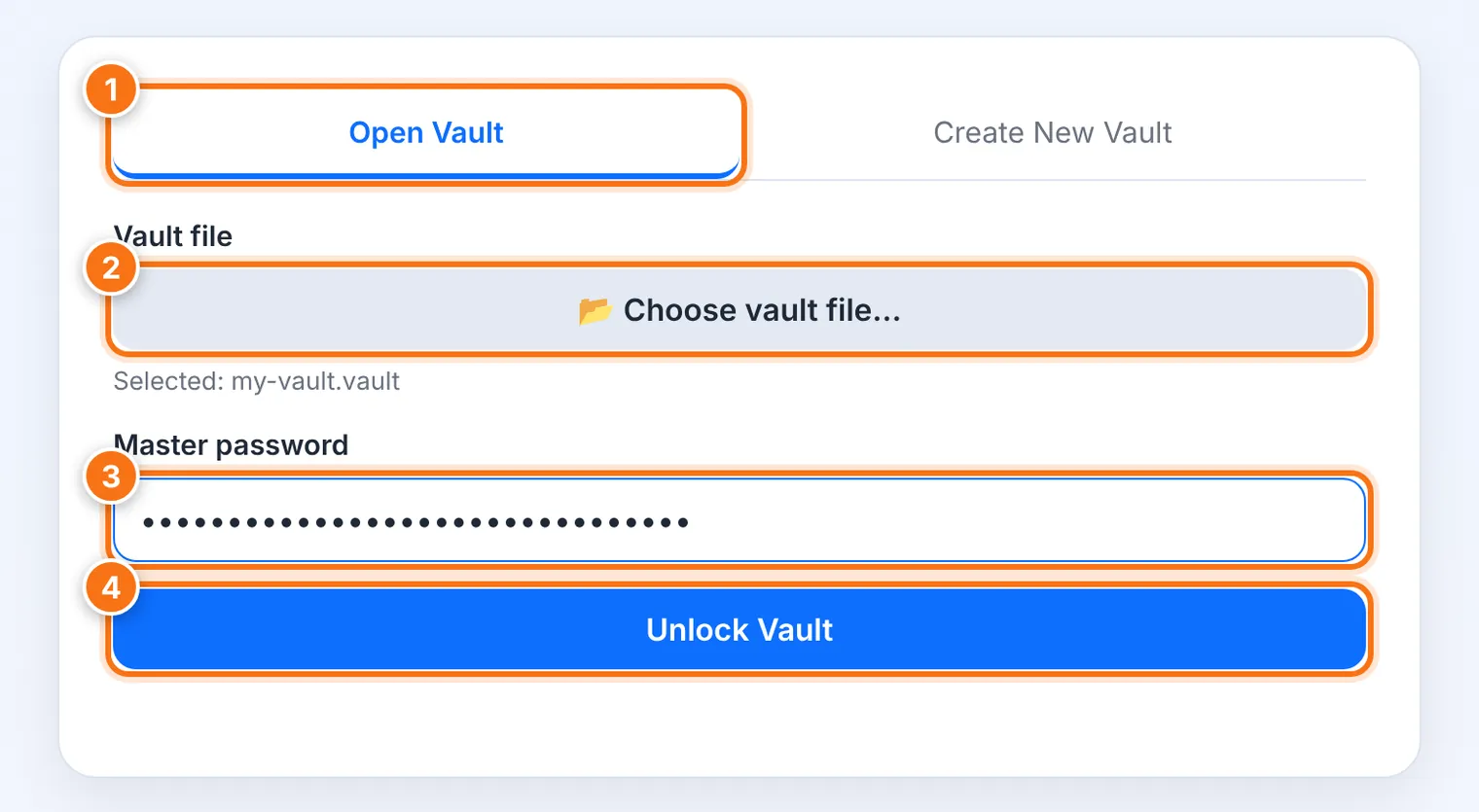
Choose the Open Vault tab.
Press Choose vault file… and pick your .vault file.
Type your master password.
Press Unlock Vault.
Adding an entry
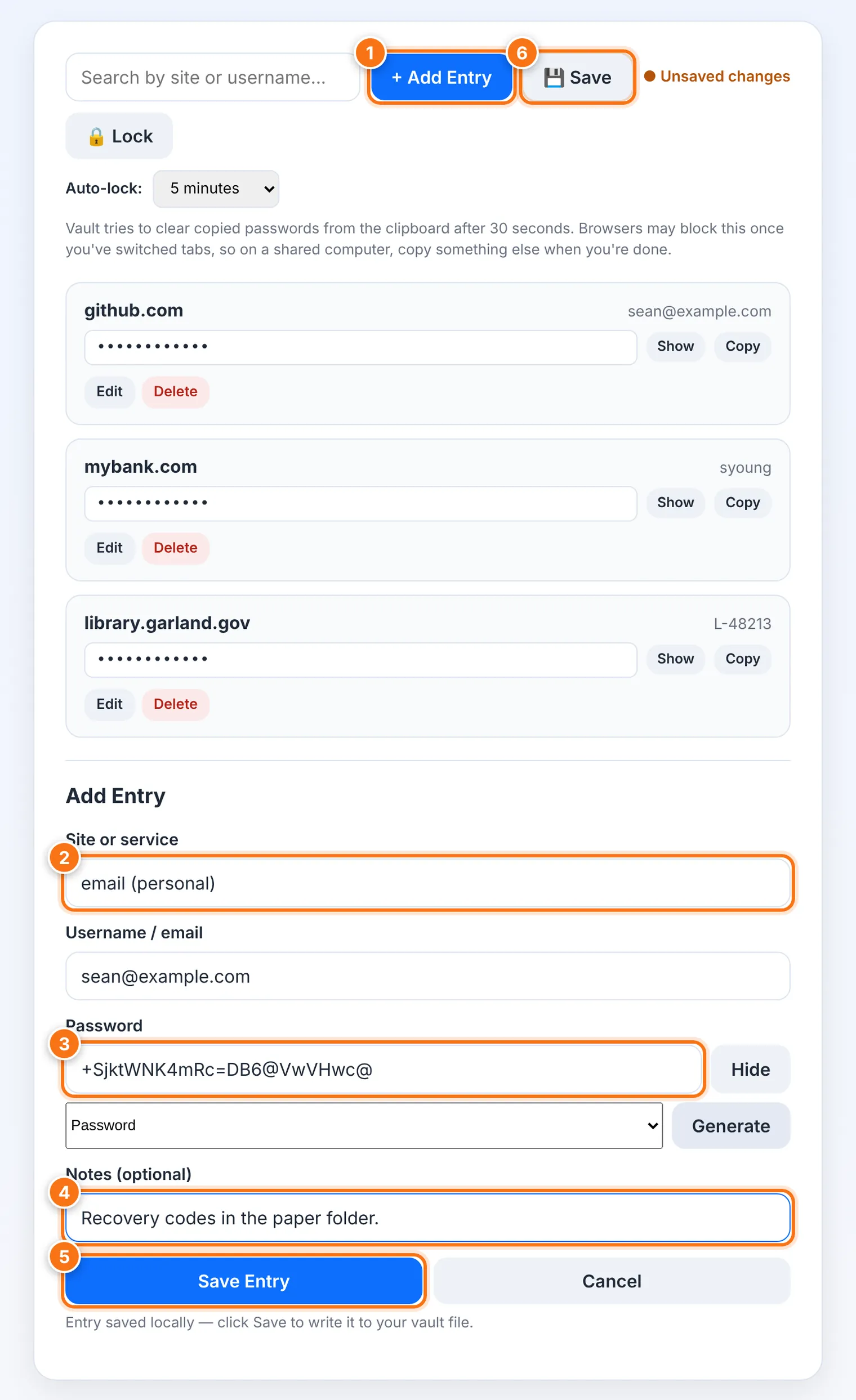
Press + Add Entry.
Fill in Site or service (for example github.com) and Username / email.
Type the Password, or create one: choose Password or Passphrase, then press Generate.
Add Notes if you like, such as security questions or a PIN hint.
Press Save Entry. Site and password must be filled in.
● Unsaved changes now appears. Press 💾 Save to write the change into your vault file. Until you do, it's only on the screen.
Finding and copying a password
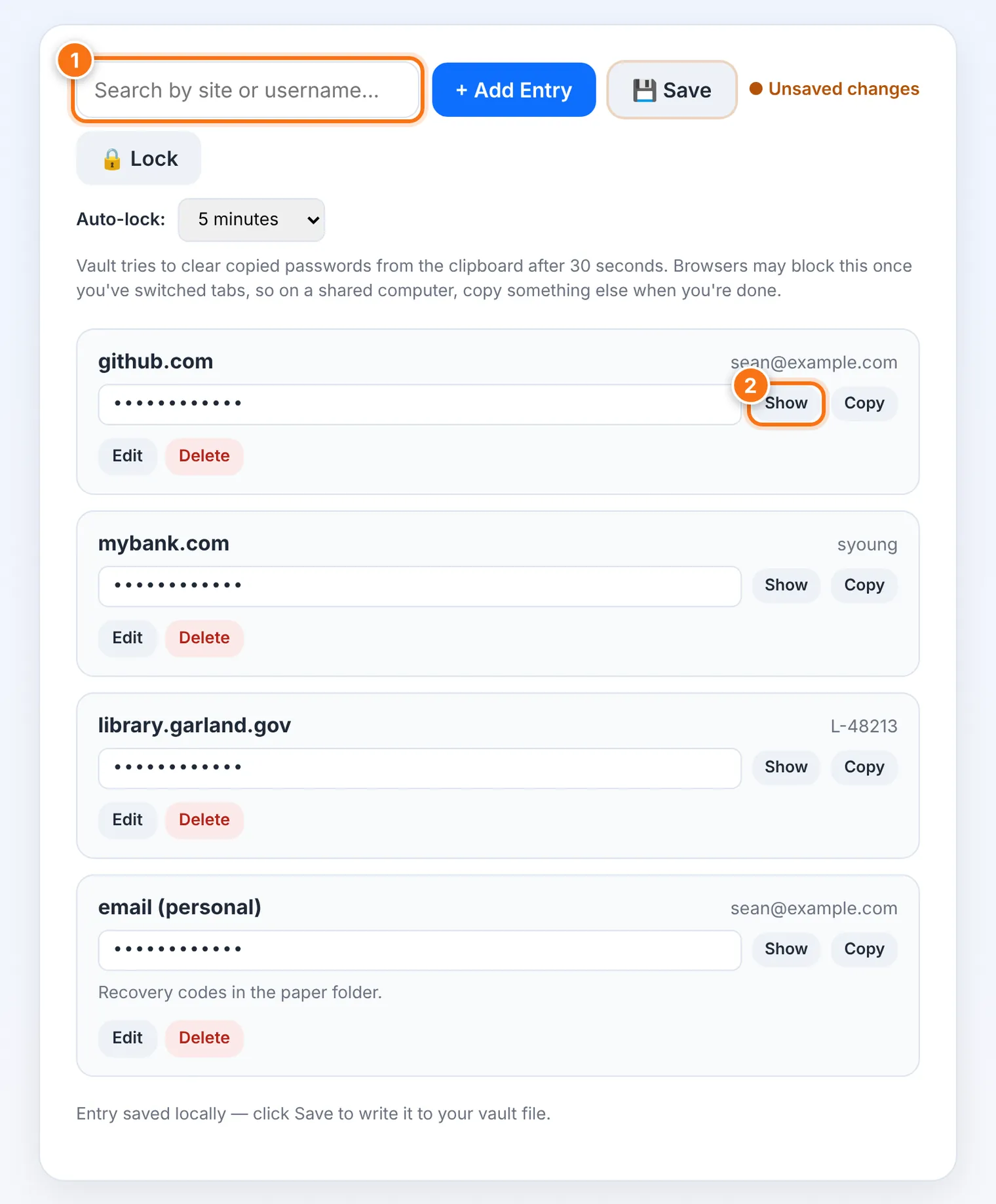
Type in the search box to find an entry by site or username.
Press Show to see the password, or Copy to copy it.
Paste it into the login page.
Vault tries to clear a copied password from your clipboard after 30 seconds. Some browsers block this once you switch to another tab. On a shared computer, copy something else when you're done, to be safe.
Each entry also has Edit and Delete. A deleted entry is gone once you save, so double-check first.
Locking and auto-lock
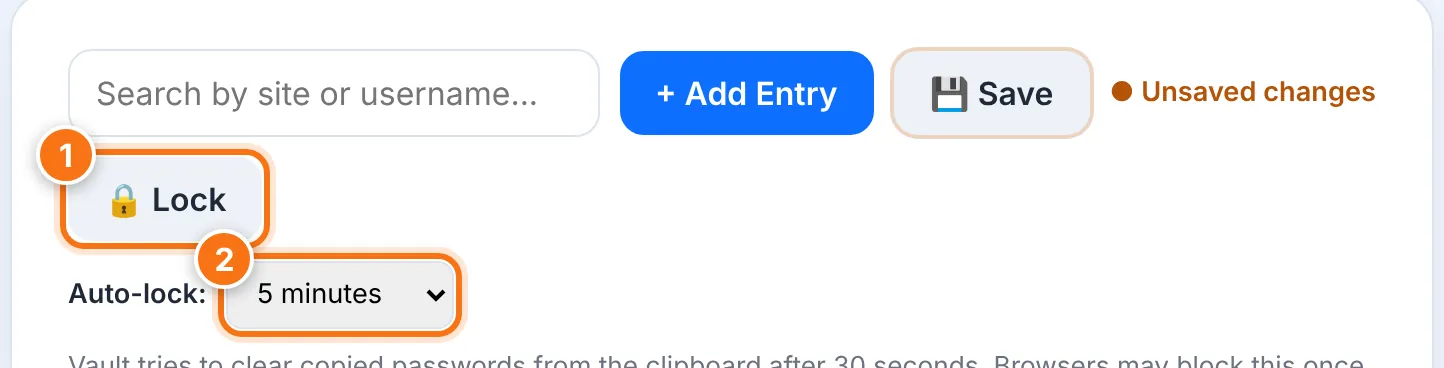
Press 🔒 Lock when you step away. The screen is emptied, and you'll need your master password again.
Auto-lock locks the vault after a time without use. You can choose 5 minutes (the default), 15 minutes, 30 minutes, or Never. Vault remembers your choice on that browser.
If you have unsaved changes, Lock asks you first. If auto-lock happens, unsaved changes are lost, and Vault tells you so when you return. Save often.
Saving: what differs between browsers
| Browser | What happens when you press 💾 Save |
|---|---|
| Chrome, Edge, Brave | Saves straight back into the same vault file. |
| Safari, Firefox | Downloads an updated copy of the vault file. Replace your old file with this new one. |
Keeping more than one copy
Your vault file is locked, so it's safe to keep copies on a USB drive and in a cloud folder. Vault does not merge copies. If you add a password to one copy, the others don't get it. Pick one copy as your main vault, and copy it over the others after each change.
What it does not do
No autofill. Vault doesn't fill in login pages for you. That would need a browser extension, which works very differently from the rest of the Suite. You copy and paste instead.
No account and no sync. Nothing is stored online.
No master password recovery. If you forget it, nobody can open the vault, including us.
Common problems
| Problem | What to do |
|---|---|
| "Could not unlock this vault" | Check the master password, Caps Lock and keyboard language. Make sure you chose your .vault file, not another file. |
| My new password isn't in the vault | You probably didn't press 💾 Save, or you opened an older copy. Check which copy is newest. |
| Safari or Firefox keeps making new files | That's normal there. Keep the newest one (it may have a number added to its name) and delete the older ones. |
| "Site and password are required" | Fill in both before pressing Save Entry. |
| "Could not copy" | Your browser blocked the clipboard. Press Show and type the password instead. |