Part 2: Lock It Up
Chapter 4: Pack Beta
Beta. Pack is live and tested, and is now in public beta testing. Its wording and extra features may change. Until it leaves beta, try it with copies of your files before you trust it with your only copy. If something doesn't work as described, please tell us through the Contact & Bug Reports form.
What it does. Pack locks files and whole folders into one encrypted package, a file ending in .e1pack. Folders keep their structure. Everything is locked: file names, folder names, dates and contents. From the outside, nobody can see what's inside or how many files there are. They can only see the package's size.
When to use it.
Locking a whole folder: tax papers, a project, a family's documents.
More than 5 files, or files over 10 MB, which Multi-File can't take.
Making one locked backup to carry on a USB drive or keep in a cloud folder.
The page has two tabs: Make a package and Open a package.
Making a package
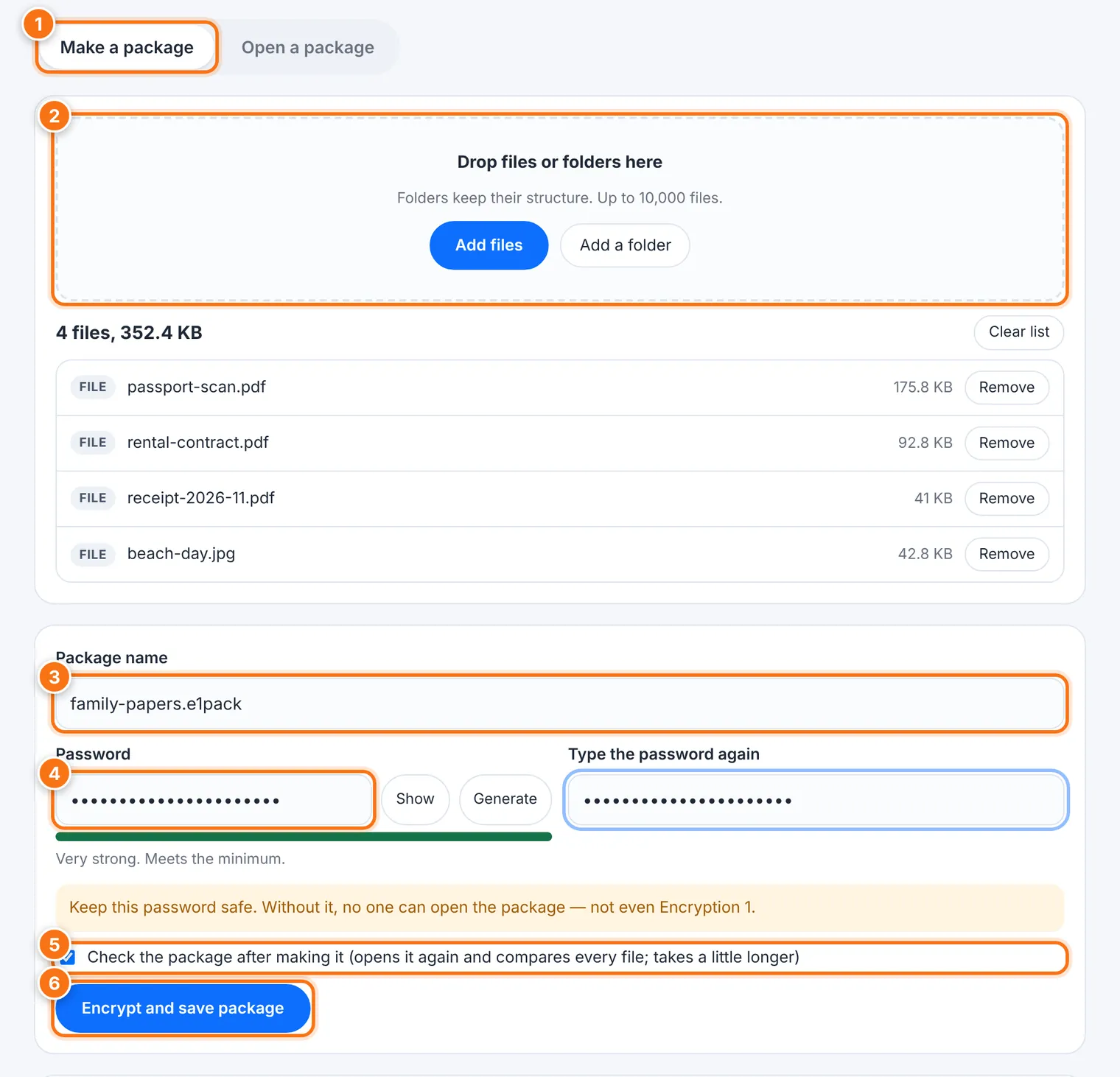
Choose the Make a package tab.
Drop files or folders onto the box, or use Add files or Add a folder. A package can hold up to 10,000 files. Hidden system files (like .DS_Store or Thumbs.db) are left out for you. Clear list starts over.
Check the Package name. It starts as package.e1pack.
Type a Password, then type it again. Or press Generate, and write the new password down or store it in Vault before you go on. The rules are the same as the other tools: 8 or more characters, a capital letter and a symbol (like ! or #).
Leave Check the package after making it ticked. Pack then opens the new package again and compares every file. It takes a little longer, but you'll know the package is good.
Press Encrypt and save package. In some browsers, you'll be asked where to save it. You can press Stop at any time; nothing is saved.
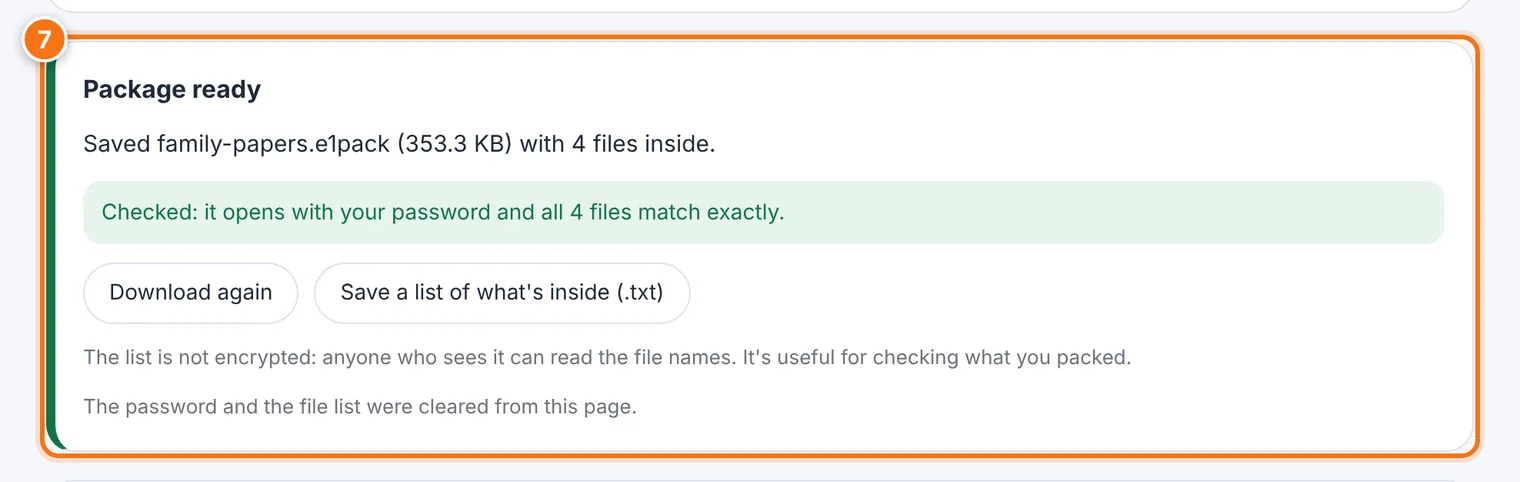
When you see Package ready, the package is saved. With the check on, it confirms that the package opens with your password and every file matches exactly. The password and file list are then cleared from the page.
Optional: after making a package, you can Save a list of what's inside (.txt). It's handy for remembering what you packed, but the list is not locked. Anyone who sees it can read the file names.
Opening a package
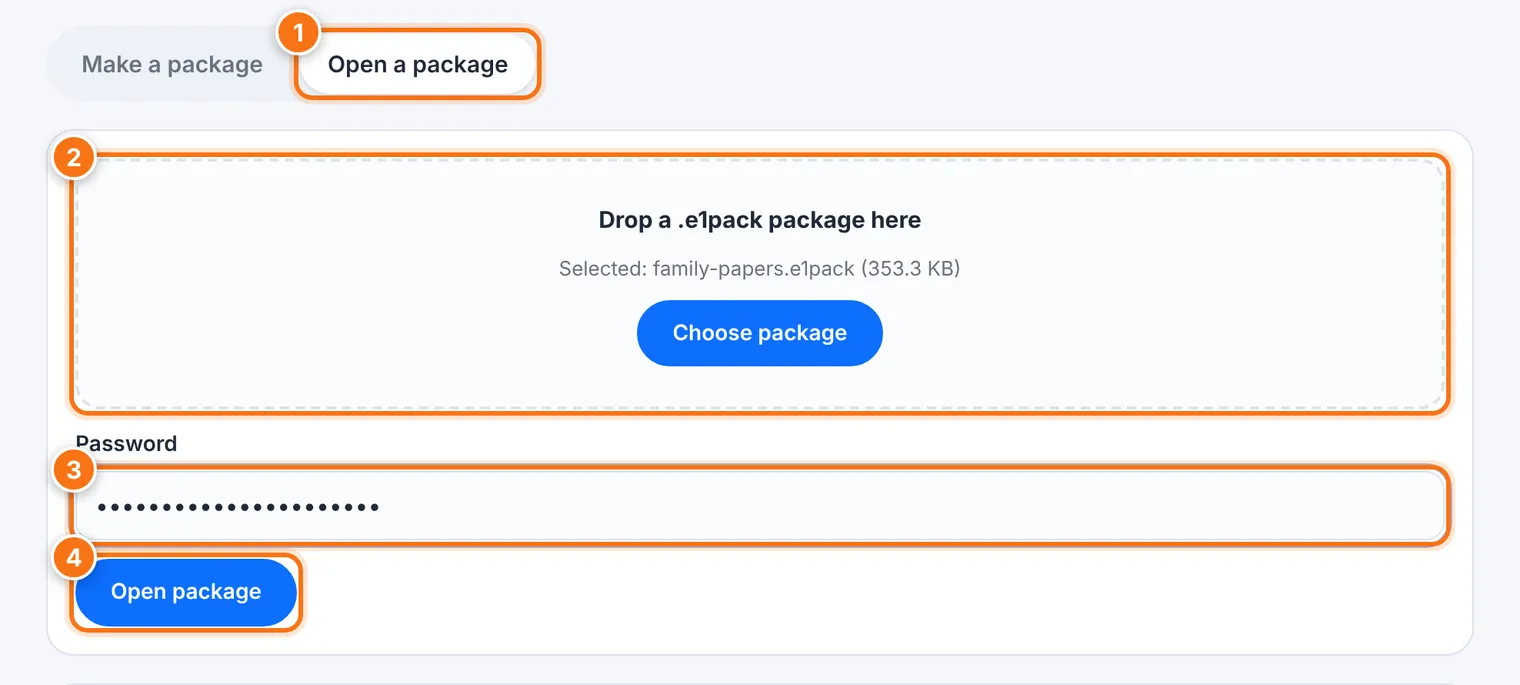
Choose the Open a package tab.
Drop the .e1pack file onto the box, or press Choose package.
Type the package's password.
Press Open package. Preparing the key takes a moment.
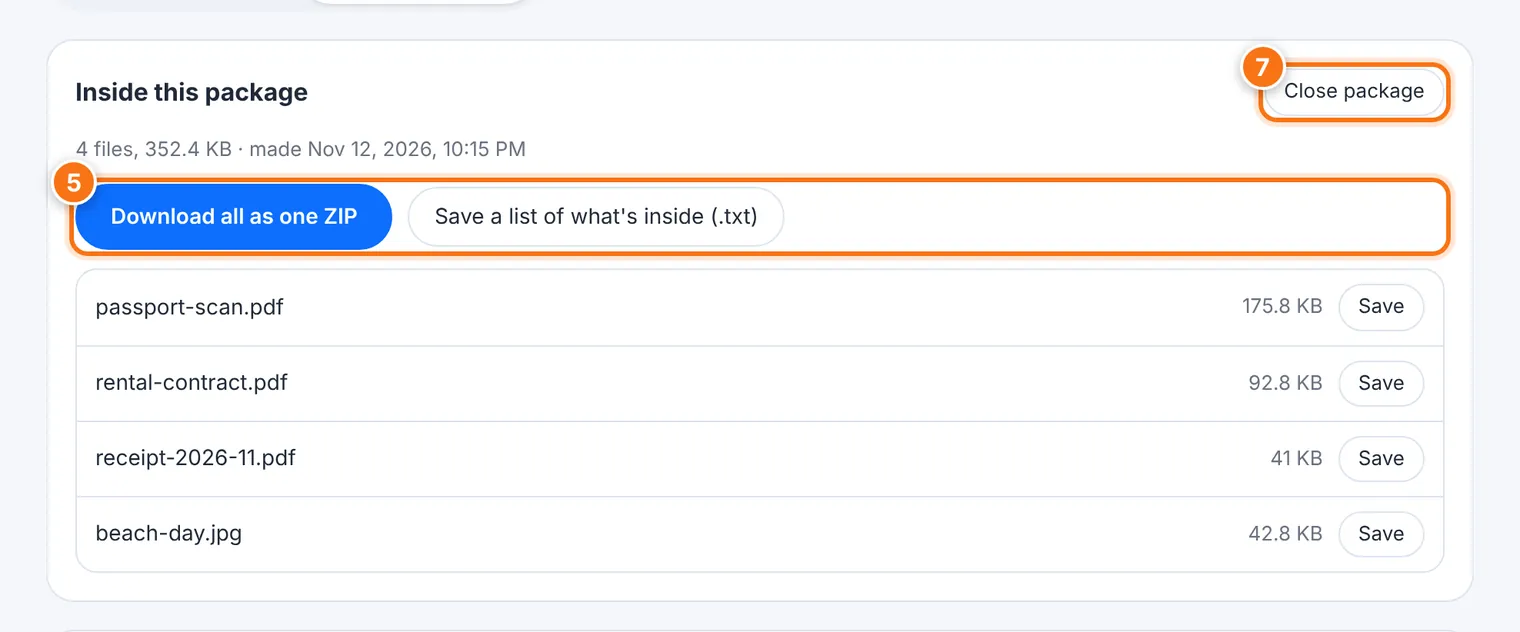
Inside this package lists everything inside. Then choose how to save:
Save all to a folder…: Pack makes a new folder, named after the package, inside the folder you choose. Nothing already there is touched.
Download all as one ZIP: one ZIP file with everything.
Save next to any single file.
Each file is checked against its fingerprint as it's saved, so you know it's exactly the original.
Press Close package when you're done.
Big packages
| Browser | How big can a package be? |
|---|---|
| Chrome or Edge on a computer | As large as your free disk space. The package is written straight to disk. |
| Safari, Firefox, and phones | Keep it under about 1.5 GB. These build the package in memory first. |
Pack, Multi-File or Zip?
| You want to… | Use |
|---|---|
| Lock up to 5 files (10 MB each) as one package | Multi-File |
| Lock folders, many files, or big files, as one package | Pack |
| Just bundle files together, with no password | Zip |
What it does not do
It does not make files smaller. A package is about the same size as what you put in.
It does not hide how big the package is.
It can't protect files on a computer that already has malware.
It only opens .e1pack packages. Older .pvault files open in Encryption 1 or Multi-File.
Common problems
| Problem | What to do |
|---|---|
| "Wrong password, or the package was changed or damaged" | Check the password, Caps Lock and keyboard language. If it's right, the package may be damaged. |
| "The package is damaged starting at …" | Files before that point were saved and checked. The rest could not be trusted. Use a backup copy if you have one. |
| "This is a .pvault file…" | It was made by Encryption 1 or Multi-File. Open it there. |
| "Couldn't read the package file" | If it's on a USB drive or in a cloud folder, copy it to the device first. |
| The browser ran out of memory | Pack fewer files at a time, or use Chrome or Edge on a computer. |
| "Couldn't read … Nothing was saved" | A file was moved or changed while packing. Leave the files alone and try again. |
| "Don't use this package" | The check found a problem. Delete that package and make it again. |