Part 2: Lock It Up
Chapter 2: Multi-File
What it does. Multi-File locks up to 5 files together into one locked package, a single .pvault file, under one password. Each file can be up to 10 MB.
When to use it.
Sending a small set of documents together, like a passport scan, a contract and a receipt.
Locking a few photos in one go, as one attachment.
The page has three tabs: Encrypt Text, Encrypt File(s) and Decrypt. Encrypt Text and Decrypt work exactly as in Encryption 1 (Chapter 1). Passwords follow the same rules too: 8 or more characters, a capital letter and a special character, typed twice. Generate works the same way.
Locking several files
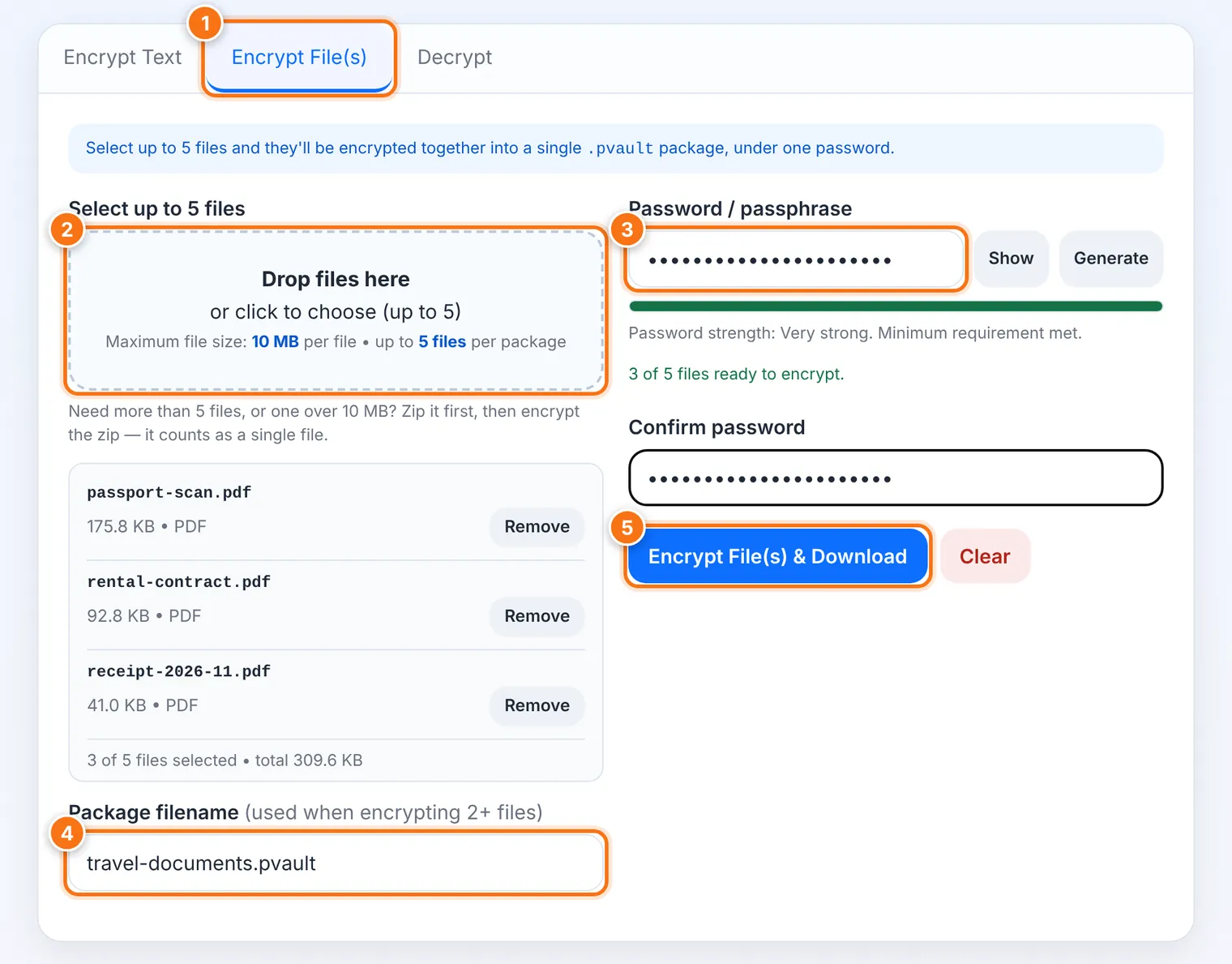
Choose the Encrypt File(s) tab.
Drop up to 5 files onto the box, or click it to choose them. The list shows each file and the total size. Use Remove to take one out.
Type and confirm a password, or press Generate.
If you like, change the Package filename. It starts as encrypted-files.pvault. (The name is only used when you lock 2 or more files.)
Press Encrypt File(s) & Download.
One .pvault package is saved, holding all your files. The page is then cleared for your safety.
Opening a package
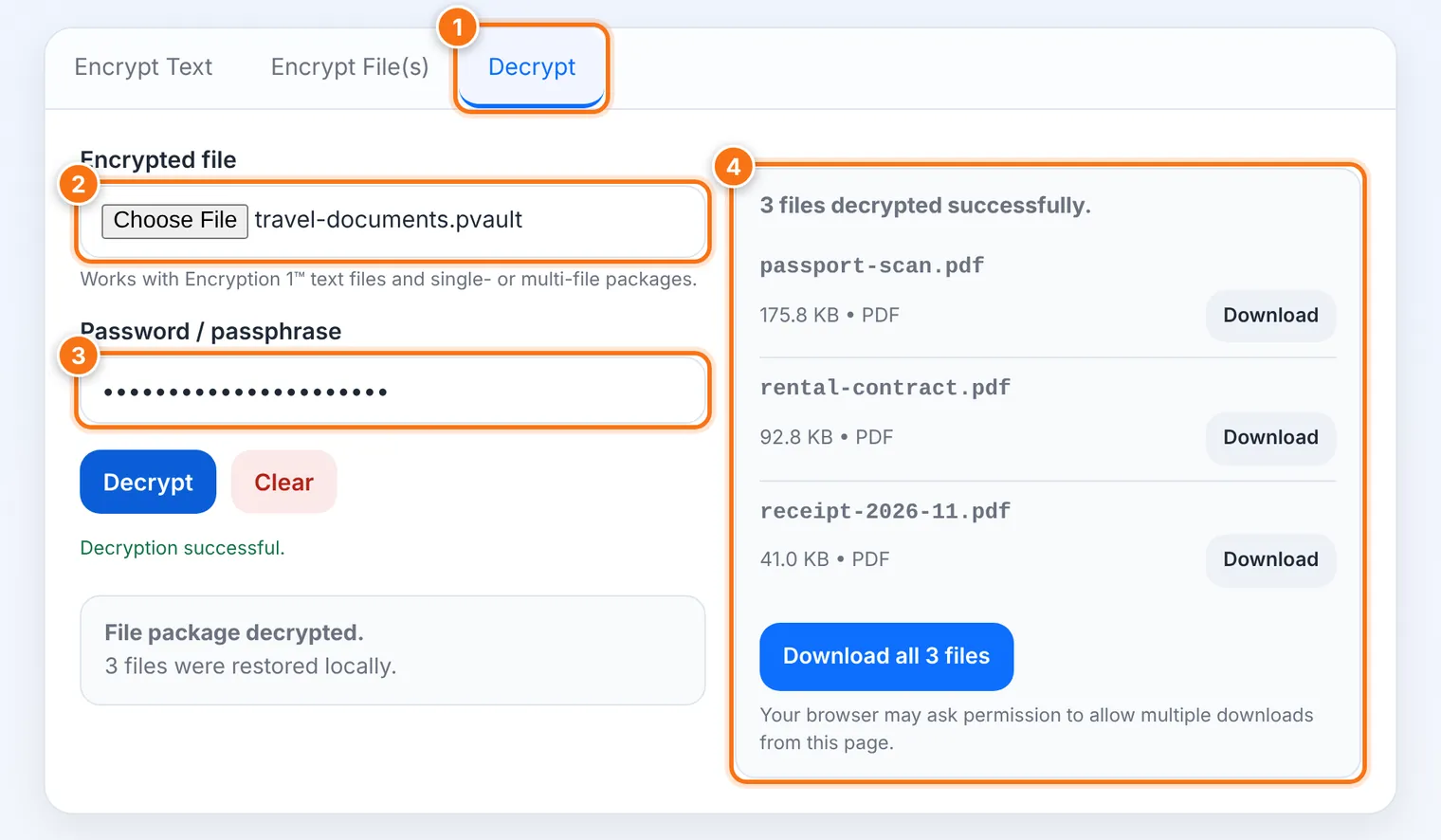
Choose the Decrypt tab.
Under Encrypted file, choose the .pvault package.
Type the password and press Decrypt.
Download each file with its Download button, or all at once with Download all.
You can also open a Multi-File package from the Decrypt tab in Encryption 1.
More than 5 files, files over 10 MB, or a folder?
Use Pack (Chapter 4). It locks whole folders and thousands of files into one package.
Or put the files into a ZIP first with the Zip tool, then lock the ZIP. Multi-File counts a ZIP as one file.
What it does not do
It does not accept folders. Drop the files inside the folder instead, or use Pack.
It skips any file over 10 MB, and tells you which one.
It does not hide the overall size of the package.
Common problems
| Problem | What to do |
|---|---|
| "… is over 10 MB and was skipped" | Use Pack for that file, or zip it first if the ZIP comes out under 10 MB. |
| "… is a folder, not a file" | Open the folder and drop the files inside it, or use Pack. |
| "You can select up to 5 files" | Lock the rest in a second package, or use Pack. |
| The browser asks about multiple downloads | When you choose Download all, some browsers ask permission first. Choose Allow. |
| "Decryption failed" | Check the password, Caps Lock and keyboard language, as in Chapter 1. |